 FileScanner.online
 URLScanner.online
You Clicked a Suspicious Link — Here's What Just Happened
It happens to security professionals, executives, and everyday users alike. A message arrives that looks legitimate—a shipping notification, a bank alert, a colleague sharing a document—and you click the link before you realize something is off. Your stomach drops. Did you just get phished?
The honest answer: it depends on the link. Clicking a phishing link does not automatically compromise your device or accounts. What happens next depends on four factors: what type of attack it was, whether your browser executed anything malicious, whether you entered any credentials or personal data, and whether your device has any existing vulnerabilities the page could exploit.
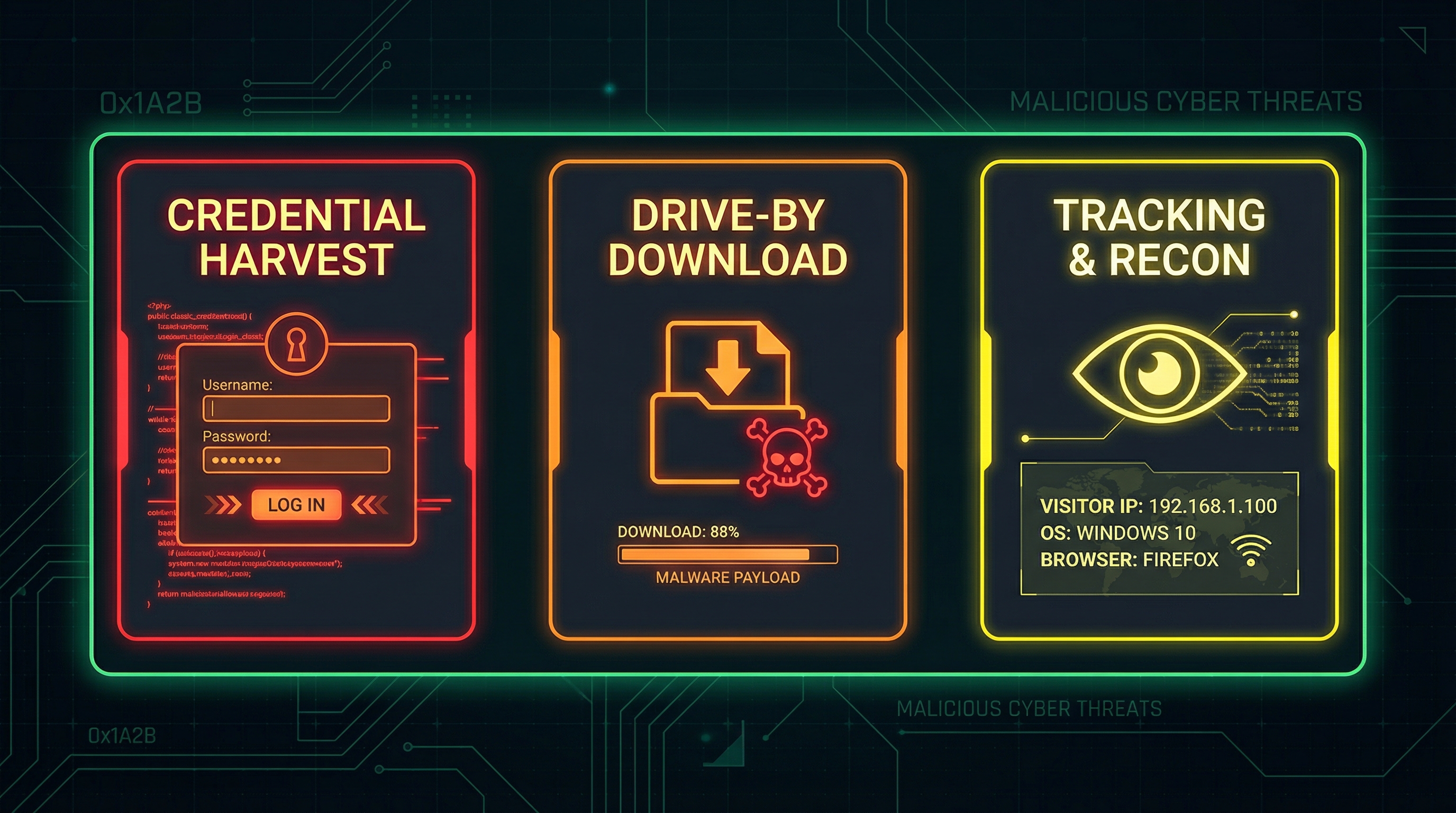
Understanding exactly what category of risk you're facing is the first step to responding correctly. Phishing links generally fall into three attack types:
Credential harvest pages — A fake login page (impersonating Google, Microsoft 365, your bank) designed to steal your username and password when you type them in. If you didn't type anything, your credentials are likely safe.
Drive-by download pages — A page that attempts to silently download and execute malware through browser vulnerabilities, malicious JavaScript, or social engineering prompts ("Your computer is infected — click to fix it"). These are the most dangerous category because they can compromise your device without any interaction beyond the click.
Tracking and reconnaissance pages — Pages that confirm your email is active, record your IP address, device fingerprint, and location data, then use this to refine future attacks or sell your profile to other threat actors. No immediate damage, but valuable intelligence for attackers.
The goal of this guide is to walk you through the exact steps to take in the first 30 minutes after clicking a suspicious link — regardless of which type it was.
Step 1: Don't Panic — But Act Immediately
The worst thing you can do is freeze and do nothing, hoping it will be fine. The second worst thing is to panic and take random actions that could make things worse — like running a system restore before you've secured your accounts, which would delete audit logs you might need.
Take a breath. Then follow these steps in order. Time matters, but methodical action matters more.
If the page asked you to download a file: Do not open it. Do not run it. Your first priority is scanning that file before anything else touches it. If you already ran it, move immediately to Step 3.
If the page crashed your browser or showed unusual behavior: Close the browser immediately using Task Manager (Ctrl+Alt+Delete on Windows, Cmd+Option+Esc on Mac) rather than clicking the X button. Some pages use JavaScript tricks to prevent normal closure.
If you're on a work device: Notify your IT security team immediately, even before completing the steps in this guide. Most organizations have incident response protocols and they need to be aware. Do not delay this notification out of embarrassment — your team has seen this before.
One critical piece of advice that almost everyone gets wrong: do not immediately disconnect from the internet. If malware has already executed and established a connection, abruptly disconnecting can sometimes trigger a "kill switch" that destroys evidence or escalates the attack. Stay connected, complete your assessment, and then make an informed decision about isolation.
urlscanner.online
Scan Any URL — In Under 2 Seconds.
8 parallel security modules: malware, SSL, DNS, phishing, WHOIS, headers, screenshots, and AI scoring. 100% private.
Step 2: Scan the Exact URL You Clicked
Before you take any further action, you need to understand exactly what that link was and what it did. Copy the full URL from your browser's address bar — or from the original message if you haven't clicked yet — and run it through a private URL scanner.
This is critical: use a scanner that keeps your scan results private. If you use a public aggregator like VirusTotal or URLScan.io, your query (including the URL you're investigating) becomes visible to other users and researchers. For sophisticated attackers who monitor for their infrastructure being scanned, this can alert them that they've been discovered — and they can adapt.
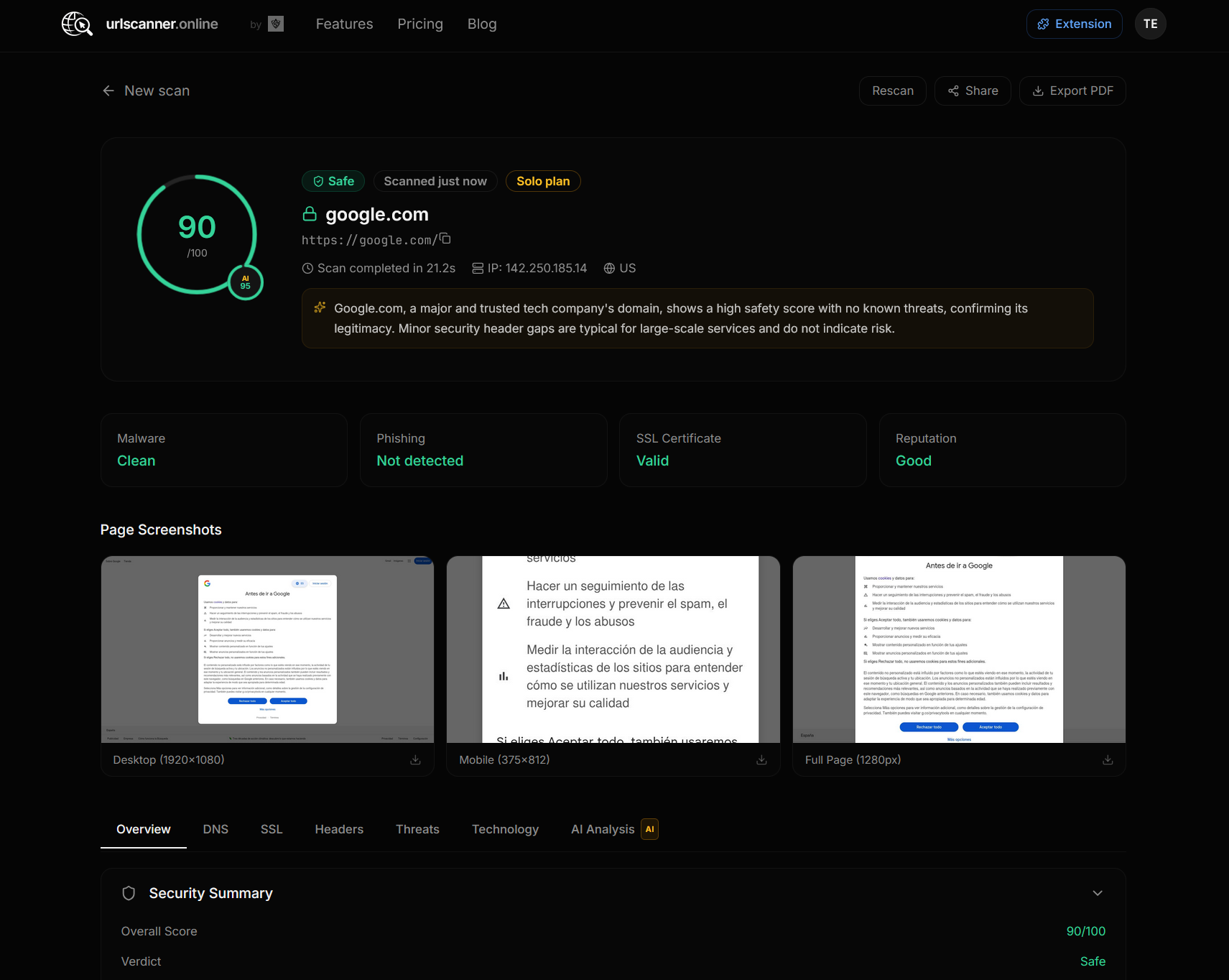
URLScanner.online runs 8 parallel security checks against the URL and returns a verdict in under 15 seconds. It checks the domain against Google Safe Browsing, URLhaus, Spamhaus, and SURBL; analyzes the SSL certificate chain; inspects DNS infrastructure; checks domain registration age; and renders a visual preview of the page in an isolated environment — all without exposing your investigation.
What you're looking for in the scan results:
Threat database hits — If the URL is already flagged in Google Safe Browsing or URLhaus, it's a confirmed malicious site. Treat it as a successful attack and proceed accordingly.
Newly registered domain — A domain registered within the last 30 days is a strong signal of a phishing site. Legitimate organizations rarely run sensitive operations from brand-new domains.
SSL anomalies — Phishing pages increasingly use HTTPS, but free certificates on domains that don't match the impersonated brand (e.g., 'microsoft-support-login.com') are a major red flag.
Visual preview mismatch — If the page renders as a fake bank login but the URL is clearly not the bank's domain, you have a confirmed credential harvest attempt.
The scan results will tell you which category of attack you were exposed to and how to prioritize your next steps.
Step 3: What Information Could Have Been Compromised
Based on your URL scan results and your own memory of what happened after you clicked, you can now assess what — if anything — was actually exposed. Work through this checklist systematically:
Did you type a username and password? If yes, those credentials are almost certainly compromised. Immediately change the password for that account and any other account where you use the same password. Enable two-factor authentication if it isn't already active.
Did you enter a credit card number, banking details, or personal identification? Contact your bank or card issuer immediately. Most banks have a fraud hotline that operates 24/7. Report the incident, and ask about freezing the card or flagging the account for unusual activity.
Did the page prompt you to download and run a file? If you ran the file, assume your device may be compromised and move directly to Step 5 — the file scan and device check.
Did the page ask you to enable browser notifications? If you clicked 'Allow', the attacker can now push notifications to your browser from their domain. Go to your browser settings and revoke notification permissions for any unfamiliar domains.
Did you only land on the page without taking any action? If the URL scan came back clean or low-risk and you didn't interact with the page, your exposure may be limited to your IP address and browser fingerprint being recorded. This is worth monitoring but is unlikely to cause immediate harm.
The most dangerous scenario — and the one where you should act most urgently — is if you entered credentials for an account you use elsewhere. Attackers immediately test harvested credentials against other services (a technique called credential stuffing) within minutes of stealing them.
| What You Did on the Page | Risk Level | Immediate Action Required |
|---|---|---|
| Landed on the page, did nothing, left immediately | Low | Scan the URL, monitor for unusual activity |
| Enabled browser notifications | Low–Medium | Revoke notification permissions in browser settings |
| Entered your email address only | Medium | Expect increased phishing/spam; monitor accounts |
| Entered username and password | High | Change password immediately on all sites where it's used |
| Entered payment or banking details | Critical | Contact your bank now — card freeze and fraud report |
| Downloaded and ran a file | Critical | Scan device for malware; consider professional IR support |
urlscanner.online
Scan Any URL — In Under 2 Seconds.
8 parallel security modules: malware, SSL, DNS, phishing, WHOIS, headers, screenshots, and AI scoring. 100% private.
Step 4: Scan Any Downloaded Files Immediately
If the phishing page prompted you to download a file — an 'invoice', a 'document', a 'security update', a browser extension installer — that file is your highest priority. Even if you haven't opened it yet, its presence on your device means you need to analyze it before deciding your next move.
Again, the same OpSec consideration applies to file scanning as it does to URL scanning: avoid uploading the file to a public scanner. If the file contains malware and you upload it to VirusTotal, you are notifying the attacker's monitoring infrastructure that their payload was discovered. Worse, if the file contains fragments of your organization's data (which sophisticated malware sometimes uses as a decoy), you've now created a data exposure incident in addition to the malware incident.
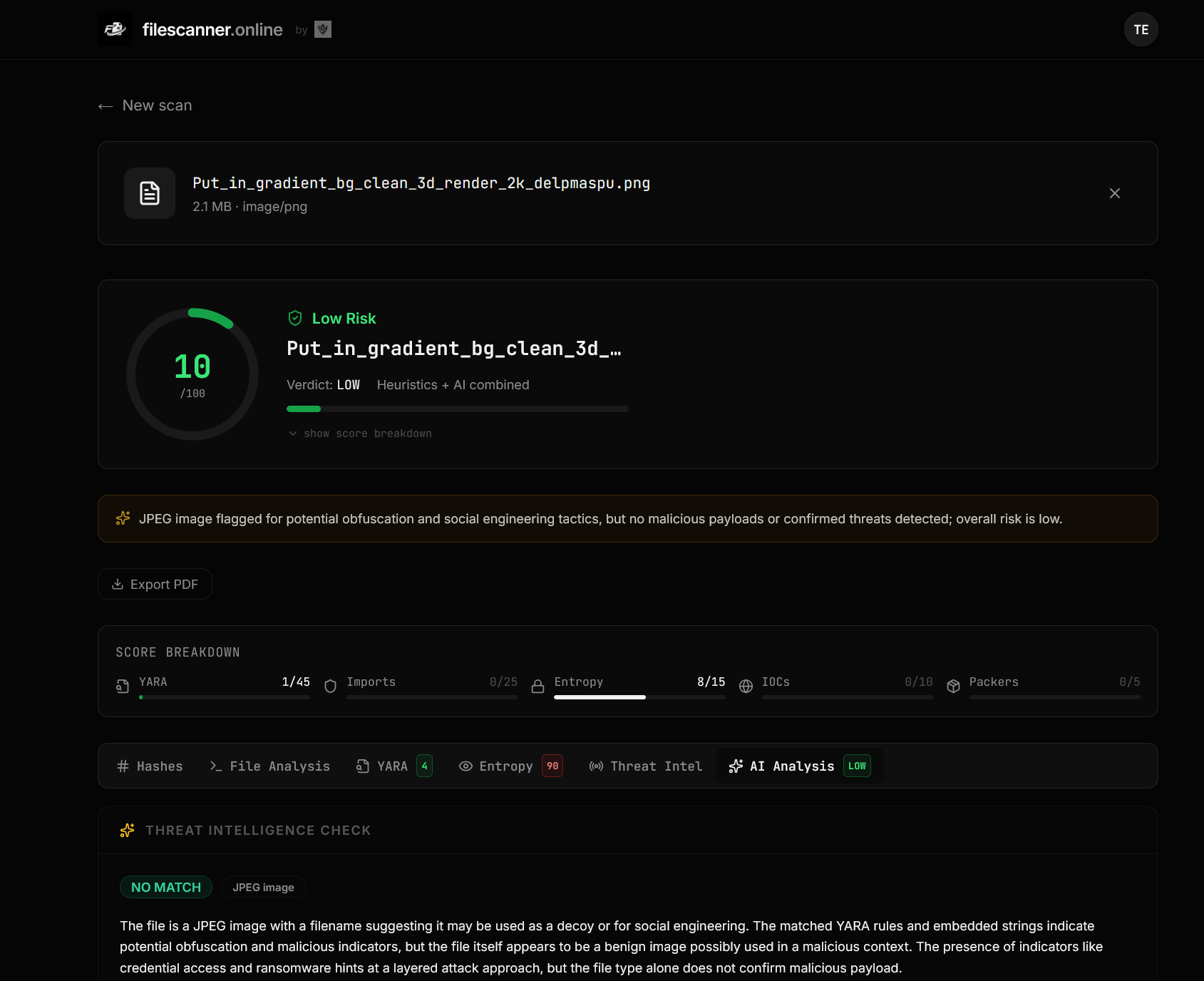
FileScanner.online performs deep static analysis of the file in a private, isolated environment. It parses PE/ELF binary headers, matches against 17 YARA rule categories, identifies over 70 suspicious API patterns commonly used by malware (process injection, credential harvesting, anti-debugging, C2 communication), and generates an AI-driven summary that explains the findings in plain language.
Files are never shared with third parties. Your scan results are private and cannot be accessed by other researchers, competitors, or the attacker who sent you the file.
If the file scan returns a positive malware verdict, do not open the file. Move it to a quarantine folder, note the file hash (provided in the scan results), and proceed to a full device scan with your endpoint protection solution. The scan report — available as a PDF export — is valuable documentation for any incident report you may need to file.
Step 5: Change Affected Credentials Immediately
If you entered any credentials on the phishing page, speed is your advantage. The window between a credential being harvested and being exploited can be as short as a few minutes for automated attacks, but typically ranges from a few hours to a few days for targeted campaigns. Every minute counts.
Change the password on the compromised account first. Log in through the official website (not through any link in your email — type the address directly into your browser or use a bookmark). Change your password to something unique and strong — a random string of at least 16 characters or a passphrase is ideal.
Enable two-factor authentication immediately if it isn't already active. Even if attackers have your password, 2FA prevents them from accessing the account without the second factor. Authenticator apps (like Google Authenticator or Authy) are significantly more secure than SMS-based 2FA, which can be intercepted via SIM-swapping attacks.
Check for active sessions you don't recognize. Most major platforms (Google, Microsoft, Facebook) allow you to view all active sessions from the security settings. Revoke any sessions you don't recognize, and log out all other devices if available.
Audit password reuse. If you used the same password on other accounts, change those too. This is the most commonly skipped step and the one attackers rely on most. Credential stuffing — taking a stolen username/password pair and testing it against dozens of other services — is fully automated and starts immediately after credentials are stolen.
Consider using a password manager if you don't already. They generate and store unique passwords for every service, eliminating password reuse entirely and making credential stuffing attacks against your accounts impossible.
filescanner.online
Scan Any File — Privately.
Deep binary analysis, YARA rules, AI summary, and PDF reports. Up to 2 GB. No account required.
Step 6: Run a Full Device Scan
Even if you didn't download a file or enter credentials, a sophisticated phishing page can attempt to exploit browser vulnerabilities to silently execute code on your device. Drive-by downloads using JavaScript exploits, malicious PDF or document content loaded in browser previews, or fake browser extension installers are all delivery vectors that don't require you to explicitly run anything.
After completing the immediate response steps above, run a full scan with your endpoint protection solution. Ensure the definitions are up to date before scanning — if you're connected to the internet and haven't disconnected, the AV software should update automatically when triggered.
For additional confidence, run a secondary scan with a second tool. Malware specifically designed to evade one endpoint protection product can sometimes be detected by another. Browser-based scanners add an extra layer for web-delivered threats.
Pay particular attention to:
Browser extensions — Review all installed extensions in your browser settings. Remove anything you don't recognize or didn't deliberately install. Malicious extensions can persist after the initial infection vector is cleared.
Scheduled tasks and startup items — On Windows, check Task Scheduler and the Startup tab of Task Manager. On Mac, review Login Items in System Preferences. Malware often establishes persistence through these mechanisms.
Recently installed software — Review the list of recently installed applications. Anything installed in the last 24–48 hours that you don't recognize should be investigated.
If your endpoint scan returns clean results but you still have unexplained behavior — unexpected network connections, slow performance, unusual processes in Task Manager — consider seeking professional incident response support. Some advanced malware is specifically designed to evade automated scanners.
Step 7: Monitor for Signs of a Successful Attack
Completing the above steps does not guarantee that no compromise occurred. Some attacks are designed to stay dormant for days or weeks before activating. Over the next 7–30 days, monitor the following indicators:
Unauthorized account access notifications — Most platforms send email or SMS alerts when a new device logs into your account. Watch for these carefully. If you receive one you didn't initiate, treat it as a confirmed compromise.
Unusual outbound emails — Check your sent mail folder periodically. Attackers who gain access to email accounts often use them to send phishing messages to your contacts, weaponizing your trusted reputation.
Unexpected password reset emails — If you start receiving password reset emails for accounts you didn't request them for, an attacker may be attempting to access those accounts using your email address.
Unusual financial transactions — Review bank and card statements for unfamiliar transactions. Report anything suspicious immediately. The sooner fraud is reported, the more likely funds can be recovered.
Slow device performance and unusual network activity — Monitor your device's CPU and memory usage and your network traffic for unexpected spikes. Malware running background processes (keyloggers, crypto miners, data exfiltration) will often cause measurable performance impacts.
Set a reminder to repeat your account security review at the 7-day and 30-day marks after the incident. Most post-phishing account takeovers occur within these windows.
| Warning Sign | What It May Indicate | Action |
|---|---|---|
| New login alert from unrecognized device | Account takeover in progress | Revoke sessions, change password, enable 2FA now |
| Unexpected password reset email | Attacker attempting account access | Secure the account immediately, report to platform |
| Sent emails you didn't write | Account compromised, being used for spam/phishing | Change password, notify your contacts, report to email provider |
| Unknown bank transactions | Payment details used fraudulently | Contact bank, freeze card, file fraud report |
| Device running hot, fan loud, slow performance | Malware running background processes | Full endpoint scan, check startup items and running processes |
| New browser extensions you didn't install | Malicious extension persisting on device | Remove immediately, run full browser security check |
urlscanner.online
Scan Any URL — In Under 2 Seconds.
8 parallel security modules: malware, SSL, DNS, phishing, WHOIS, headers, screenshots, and AI scoring. 100% private.
How Phishing Links Actually Work — A Technical Look
Understanding the mechanics of phishing helps you make better decisions in a crisis. Modern phishing infrastructure is far more sophisticated than a simple fake login page.
Phishing-as-a-Service (PhaaS) platforms like EvilProxy and Modlishka are openly sold in underground markets, allowing attackers with no technical skill to launch advanced adversary-in-the-middle attacks. These platforms sit between you and the legitimate website, proxying the real content — including valid SSL certificates — while intercepting your credentials and session cookies in real time. Multi-factor authentication that relies on session cookies (rather than hardware keys) can be bypassed by these tools.
URL cloaking techniques are commonly used to evade automated scanners. The link you click may redirect through several clean domains, through legitimate URL shorteners, or through compromised legitimate websites before landing on the phishing page. This is why a URL scan may not always return a clear malicious verdict — the initial URL is clean, but the destination is not.
Time-delayed activation is a technique where a malicious page only activates after a delay or after verifying the visitor's IP address, browser fingerprint, or referrer. This is specifically designed to defeat automated security scanners, which typically analyze the page within seconds of following the link.
The practical implication is that even clean results from a URL scanner do not guarantee the page was completely safe. The scan result is valuable context, but it should be combined with your own memory of what you saw and did on the page.
Preventing This From Happening Again
Responding to a phishing click is reactive. The more valuable investment is in systems and habits that prevent future incidents.
Never click links in emails or messages to reach login pages. If you receive an alert from your bank, navigate directly to the bank's website by typing the address in your browser. This single habit eliminates the vast majority of credential phishing attacks.
Use a password manager. Password managers won't autofill on phishing sites that don't match the saved URL. This is an automatic, passive protection against credential harvest pages — even if you land on a perfect fake, the password manager won't fill in your credentials.
Enable 2FA on all critical accounts. Even if credentials are stolen, TOTP-based 2FA (authenticator apps) prevents account takeover in the vast majority of cases. Hardware security keys (FIDO2/WebAuthn) provide the strongest protection and are completely immune to phishing-site credential harvesting.
Install the Aprensec URLScanner browser extension. The extension adds a right-click option to scan any link before you click it. For suspicious links in emails, hover over them and scan before clicking — or simply make it a habit to scan before clicking any link that arrives unsolicited.
Stay skeptical of urgency. The single most consistent feature of phishing attacks is artificial urgency: 'Your account will be suspended in 24 hours', 'Immediate action required', 'Unusual sign-in detected'. This urgency is engineered to bypass your critical thinking. Legitimate organizations will never require you to act within hours on a security issue — they understand that security decisions require careful verification.
If you're a security-conscious user managing multiple accounts or working in a professional capacity where phishing is a significant risk, consider setting URLScanner.online as your default scanning destination for any suspicious link. Running a 15-second scan before clicking is a habit that costs almost nothing and can prevent account compromises, malware infections, and data breaches.