 FileScanner.online
 URLScanner.online
Why You Need an Online Virus Scanner
You receive an email attachment from a supplier. Your colleague sends you an executable via Slack. You download a PDF from a website you've never visited before. In each of these situations, you're about to open a file from a source you don't completely trust — and your instinct to check it before opening is correct.
Traditional antivirus software runs in the background on your computer, but it has a fundamental limitation: it works from a database of known threats. New malware is created every day, and newly built malware will often evade signature-based detection entirely for the first hours or days after it's deployed — the window during which attackers most want to use it.
An online virus scanner adds a second layer of inspection. Instead of relying solely on signatures, a good online scanner performs structural analysis of the file itself — examining its binary headers, parsing its internal structure, matching it against behavioral indicators, and cross-referencing it with real-time threat intelligence feeds. This approach can detect threats that haven't yet been added to traditional antivirus databases.
The other major advantage of an online scanner is convenience. There is nothing to install, configure, or update. You open a browser, upload the file, and get results in seconds. For users who don't want to install additional security software, or for IT teams who need a secondary verification tool, a browser-based scanner is a practical, low-friction solution.
This guide covers how online virus scanners work, what makes some better than others, and how to use a free, private scanner to check any file before you open it.
How Online Malware Scanners Actually Work
Not all online virus scanners work the same way. There are two fundamentally different approaches, and understanding the difference will help you choose the right tool for your situation.
Engine aggregation scanners (VirusTotal is the most well-known example) take your file and submit it to a large number of commercial antivirus engines — 70 or more in VirusTotal's case. They return a verdict expressed as a ratio: for example, '3 out of 70 engines flagged this file.' This approach provides broad coverage and is excellent for quickly checking whether a known piece of malware has been cataloged by the security community. The weakness is that it's entirely signature-based — if the malware is new, none of the engines may have seen it before.
Structural analysis scanners take a different approach. Instead of relying on antivirus signatures, they analyze the file's internal structure directly: parsing binary headers, inspecting imported functions and API calls, computing entropy measurements per section, matching against behavioral YARA rules, and querying threat intelligence feeds. This type of scanner can detect malicious patterns in files that have never been seen before, because it focuses on how the file is built rather than whether its specific byte pattern is in a database.
The most effective workflow combines both approaches, but for fresh or targeted malware — particularly malware designed specifically to evade antivirus detection — structural analysis often catches what aggregation scanners miss.
A third consideration is what happens to your file after you upload it. Engine aggregation scanners, by design, share your file with their entire network of antivirus vendors and researchers. Structural analysis scanners can be entirely private, meaning the file is analyzed and then discarded without being indexed or shared. For sensitive files, this distinction is critical.
filescanner.online
Scan Any File — Privately.
Deep binary analysis, YARA rules, AI summary, and PDF reports. Up to 2 GB. No account required.
The Problem With Public Scanning Platforms
Public aggregation scanners like VirusTotal are powerful tools that have done enormous good for the security community. But they have a fundamental characteristic that makes them the wrong choice for certain situations: every file you upload becomes public.
When you upload a file to VirusTotal's free tier, that file is stored and shared with the platform's network of security vendors and researchers. This is how the platform works — it's a crowdsourced threat intelligence database. For independent researchers studying malware trends, this public model is valuable. But for individuals or organizations scanning files that contain sensitive information, it creates real problems.
Sensitive document fragments. Malware commonly uses legitimate-looking documents as lures. An executable disguised as an invoice, a PDF dropper, a macro-enabled Word document — these files might contain fragments of real business data, client names, or financial figures. Uploading them to a public repository exposes that data.
Proprietary software. If you're scanning a piece of custom software your organization developed, or an unreleased binary from a vendor, uploading it to a public platform could leak intellectual property or competitive information.
Incident response confidentiality. During an active security incident, uploading malware samples to public platforms can alert sophisticated threat actors that their tools have been discovered. Attackers actively monitor for their own file hashes in platforms like VirusTotal. When they see a hit, they know to rotate their infrastructure.
The practical takeaway: public scanners are appropriate for checking generic, publicly available files. For anything involving your own data or an active investigation, use a private scanner.
| Scenario | Public Scanner (e.g., VirusTotal) | Private Scanner (e.g., FileScanner.online) |
|---|---|---|
| Checking a generic software download | Appropriate — file has no sensitive content | Also appropriate — same analysis, private results |
| Scanning a suspicious email attachment | Risky — attachment may contain personal data | Correct choice — analysis is confidential |
| Analyzing malware during an IR investigation | Dangerous — can alert attacker their tool was found | Correct choice — private, operational security maintained |
| Scanning proprietary or internal software | Problematic — exposes IP to vendor network | Correct choice — file never leaves private environment |
| Verifying a file for compliance documentation | Limited — no PDF export in free tier | Correct choice — AI report is PDF-exportable |
FileScanner.online: A Free, Private Online Virus Scanner
FileScanner.online is a browser-based malware scanner built specifically to address the limitations of public aggregation scanners. It requires no account to use, accepts files up to 2 GB, and keeps every scan result completely private — your files are never shared with antivirus vendors, indexed in public databases, or accessible to other researchers.
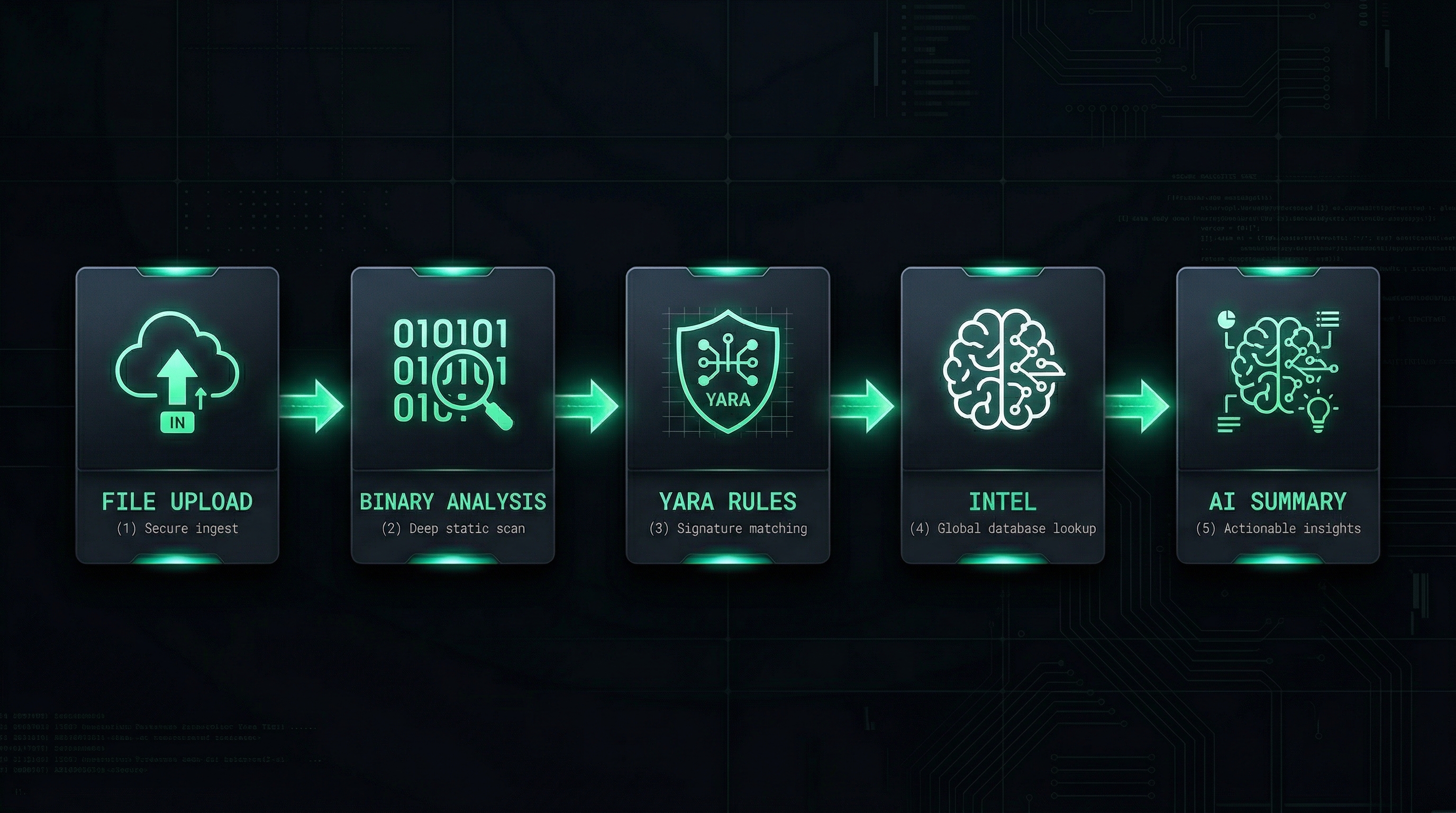
The scanner performs deep structural analysis rather than engine aggregation, which means it can detect malware patterns in files that are too new to appear in antivirus signature databases. The analysis is completed in seconds and results in a comprehensive report covering hash verification, binary structure anomalies, YARA rule matches, suspicious API patterns, and a plain-language AI summary that explains what was found and what it means.
For users who need documentation — such as security teams filing incident reports or organizations that need to demonstrate due diligence to auditors or insurers — the results are available as a downloadable PDF report.
The free tier provides immediate access with no registration required. For teams with higher scanning volumes, paid plans remove daily limits and add API access for integration into automated workflows.
filescanner.online
Scan Any File — Privately.
Deep binary analysis, YARA rules, AI summary, and PDF reports. Up to 2 GB. No account required.
How to Use a Free Online Virus Scanner — Step by Step
Scanning a file for malware online takes under two minutes from start to finish. Here's the exact process:
Step 1 — Do not open the file first. This sounds obvious, but it's worth stating explicitly. If the file is malicious, opening it executes the threat before you've had a chance to analyze it. Keep the file in your downloads folder or quarantine location and analyze it in place.
Step 2 — Navigate to the scanner in a separate browser tab. Open filescanner.online in a new tab. No account or registration is required.
Step 3 — Upload the file. Drag and drop the file onto the upload area, or click to browse. The scanner accepts files up to 2 GB, including executables (EXE, DLL, MSI), documents (PDF, DOCX, XLSX), scripts (PS1, BAT, JS, VBS), and compressed archives (ZIP, RAR, 7Z).
Step 4 — Wait for the analysis. The scan typically completes in under 30 seconds for most files. Larger files or complex binaries may take slightly longer. The results page displays in real time as each analysis module completes.
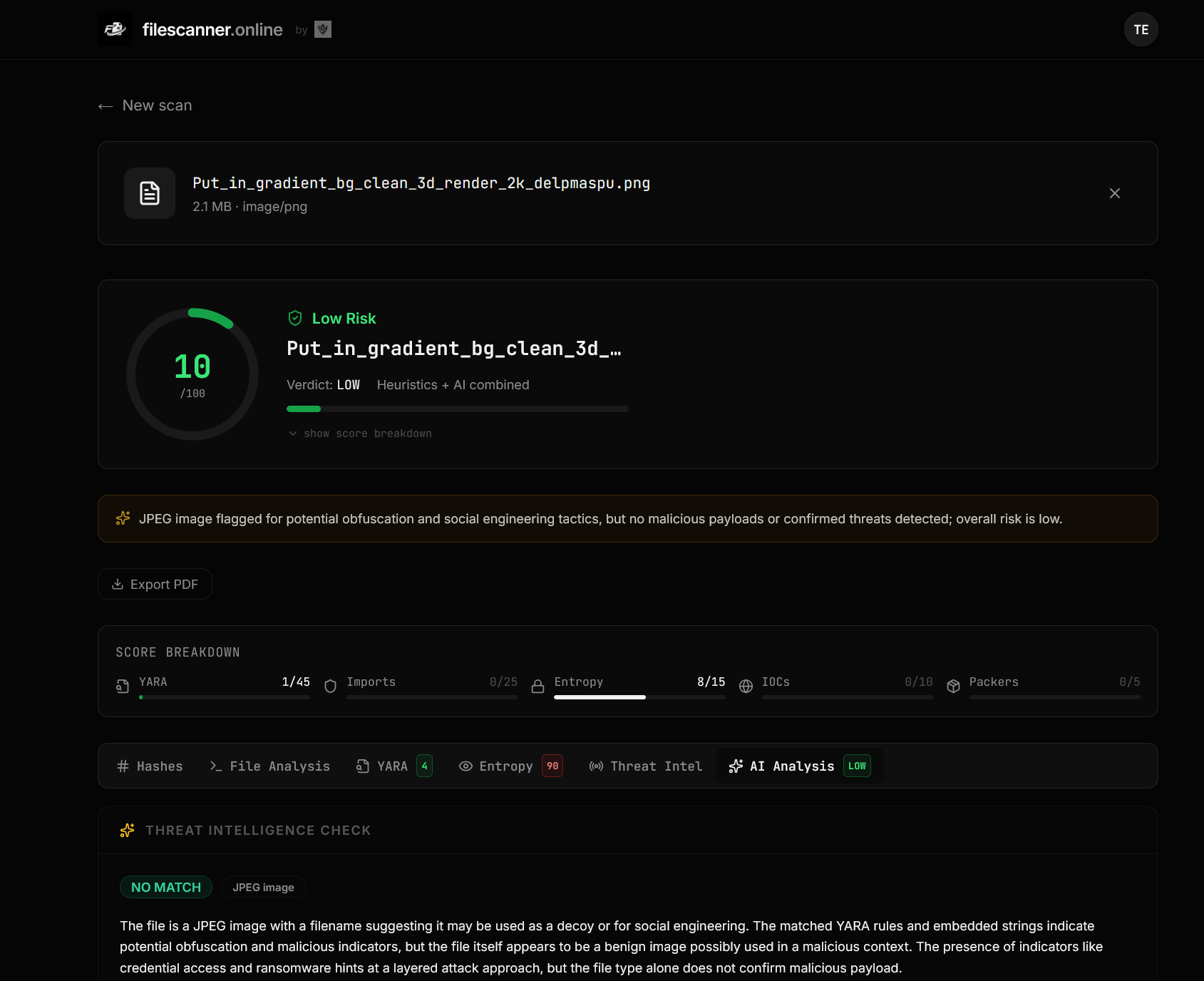
Step 5 — Review the results. The top of the results page shows an overall risk assessment. Scroll through the sections to see the detailed findings: hash verification results, binary structure analysis, YARA rule matches, suspicious API patterns, and the AI-generated summary explaining what was found.
Step 6 — Take action based on the verdict. If the file is clean, you can proceed with reasonable confidence. If the scan returns suspicious or malicious indicators, do not open the file. Delete it, note the file hash from the scan results, and report the incident to your IT team or the platform that delivered the file to you.
What Your Scan Results Actually Mean
Online virus scanner results can contain technical terminology that's confusing to non-specialists. Here's a practical guide to interpreting the key findings:
YARA rule matches — YARA rules are pattern-matching signatures designed to identify specific malware families, hacking tools, or suspicious code patterns. A single YARA match doesn't necessarily mean the file is malicious (some rules have false positives for packed or obfuscated legitimate software), but multiple matches across different categories are a strong indicator of malicious intent.
High entropy sections — Entropy measures the randomness of data in each section of a binary file. High entropy (above 7.0 on a 0–8 scale) in executable sections typically indicates that the code is packed or encrypted. Malware authors pack their code to evade signature detection. While legitimate software can also be packed, packed sections in an unknown executable should raise suspicion.
Suspicious API imports — Executable files list the Windows API functions they use. Functions like VirtualAllocEx, WriteProcessMemory, and CreateRemoteThread are commonly used for process injection — a technique malware uses to hide inside legitimate system processes. Their presence doesn't guarantee maliciousness (some legitimate tools use these APIs), but in combination with other indicators, they paint a clearer picture.
Threat intelligence hits — If the file's hash matches entries in threat intelligence databases like Abuse.ch ThreatFox or Team Cymru's Malware Hash Registry, the file is already known-bad. This is the strongest possible indicator and requires no further analysis — delete the file and report the incident.
Packer detection — Tools like UPX, VMProtect, and Themida are used to compress and obfuscate executables. Legitimate software is sometimes packed for size reduction, but packers are also a core technique for malware evasion. Packer detection in an unknown file from an untrusted source is a red flag.
The AI summary section of the scan report translates these technical indicators into plain language, explains which findings are most significant, and identifies likely false positives where the structural patterns suggest benign intent despite triggering certain rules.
| Finding | What It Means | Risk Level |
|---|---|---|
| Hash matches threat intelligence database | File is already cataloged as known malware | Critical — delete immediately |
| Multiple YARA rule matches (5+) | File matches behavioral patterns of known malware families | High — investigate further |
| High entropy in executable sections | Code is packed or encrypted — often used to evade AV detection | Medium–High — context matters |
| Process injection API imports | File contains functions commonly used for code injection | Medium — check against other indicators |
| Newly compiled binary (< 24 hours ago) | Possible newly created malware, too new for AV signatures | Medium — scan and investigate |
| Single YARA match, clean on all other indicators | Possible false positive from a generic detection rule | Low — AI summary will clarify |
| No threats detected | File appears clean based on structural analysis | Low — proceed with reasonable confidence |
filescanner.online
Scan Any File — Privately.
Deep binary analysis, YARA rules, AI summary, and PDF reports. Up to 2 GB. No account required.
Which File Types Should You Always Scan?
Not every file type carries the same risk. Here are the categories you should always scan before opening, regardless of the source:
Executable files (.exe, .msi, .dll, .bat, .cmd, .ps1, .vbs, .js) — Any file that can directly execute code on your system is the highest-priority scan target. Even files that appear to come from trusted senders can be malicious if the sender's email was compromised. Never run an executable you didn't intentionally download from an official source without scanning it first.
Office documents with macros (.docm, .xlsm, .pptm) — Macro-enabled Office documents remain one of the most common malware delivery mechanisms. Attackers use them to deliver everything from ransomware to remote access trojans. Scan any macro-enabled document before enabling macros. Better yet, avoid enabling macros at all unless you're certain the document is legitimate and macros are required.
PDF files from unknown senders — PDFs can contain embedded JavaScript, exploit code targeting PDF reader vulnerabilities, and hidden malicious URLs. A PDF that arrives unexpectedly, especially with an urgent subject line ('Your invoice is overdue', 'Legal notice'), should always be scanned.
Compressed archives (.zip, .rar, .7z, .tar.gz) — Archive files are frequently used to bypass email security filters. The malicious payload inside the archive is often not scanned by email gateways, which only examine the archive container rather than its contents. Extract the archive to a safe location and scan the extracted files.
Installers from unofficial sources — Trojanized versions of legitimate software are a common attack vector. If you're downloading software from a source other than the official vendor website or a trusted platform (like the App Store or trusted Linux repositories), scan the installer before running it.
Files shared through messaging apps (WhatsApp, Telegram, Discord, Slack) deserve particular scrutiny. These platforms are increasingly used for malware distribution because they bypass email security systems. Treat any file sent via messaging app with the same skepticism you'd apply to an unsolicited email attachment.
Online Virus Scanner vs. Installed Antivirus: When to Use Each
Online scanners and installed antivirus solutions are not competing tools — they serve complementary roles in a complete security posture. Understanding when each is the right choice helps you get maximum protection from both.
Use your installed antivirus for: Real-time protection against known threats as they execute on your system. AV runs continuously in the background, scanning files as they're written to disk, monitoring running processes, and intercepting network connections to known malicious destinations. This persistent monitoring is something an online scanner can't provide.
Use an online scanner for: Pre-execution analysis of suspicious files before your AV has a chance to execute them. For new malware that isn't yet in antivirus signature databases, or for files you want to analyze more deeply than a quick signature check allows. Also use an online scanner as a second opinion when your AV flags something as suspicious but doesn't give you enough context to decide whether to delete or keep the file.
Use a private online scanner specifically for: Any file that contains or might contain sensitive information. Any file related to an active security investigation. Any case where you need a documented, exportable report of the analysis.
The layered approach — installed AV plus periodic on-demand scanning with an online tool for suspicious items — provides significantly better protection than either solution alone. The AV handles the known threat landscape continuously; the online scanner adds depth analysis and a second opinion for anything that requires closer inspection.
If you work in security, incident response, or IT administration, FileScanner.online can be integrated directly into your workflow via API, enabling automated scanning of files in custom pipelines without requiring manual browser-based uploads.
filescanner.online
Scan Any File — Privately.
Deep binary analysis, YARA rules, AI summary, and PDF reports. Up to 2 GB. No account required.
File Safety Checklist: Before You Open Any Suspicious File
Use this checklist every time you receive a file from a source you're not completely certain about:
1. Verify the source independently. If you received the file by email, call or message the sender through a separate channel (not by replying to that email) to confirm they actually sent it. Many malware campaigns impersonate known contacts by compromising their email accounts or spoofing their addresses.
2. Check the file extension carefully. Attackers use several tricks to disguise malicious files: a file named 'invoice.pdf.exe' will show as 'invoice.pdf' in Windows if file extensions are hidden. Alternatively, they use Unicode right-to-left override characters to reverse the displayed filename. Enable file extension visibility in your operating system settings and always read the full extension.
3. Look up the file hash before scanning. Before uploading to any scanner, compute the file's SHA-256 hash (using PowerShell's Get-FileHash, macOS's shasum -a 256, or Linux's sha256sum) and search for it on VirusTotal or MalwareBazaar. If the hash is already cataloged as malware, you have your answer without needing to upload the file at all.
4. Upload to a private scanner. Use FileScanner.online for private, deep structural analysis. Review the AI summary and the technical findings before deciding whether to open the file.
5. Check what the file actually opens with. Before double-clicking, right-click and select 'Open With' to confirm the file type matches what the extension suggests. An EXE renamed with a PDF icon will still execute as an EXE when double-clicked on Windows.
6. When in doubt, don't. If the scan returns uncertain results and the file is from an unusual source, the safest decision is not to open it. Ask the sender to provide the file through an alternative method or resend it from a verified platform. No legitimate business document is worth a ransomware infection.